



























































































Hidden iOS 18 Features Apple Didn’t Tell You About

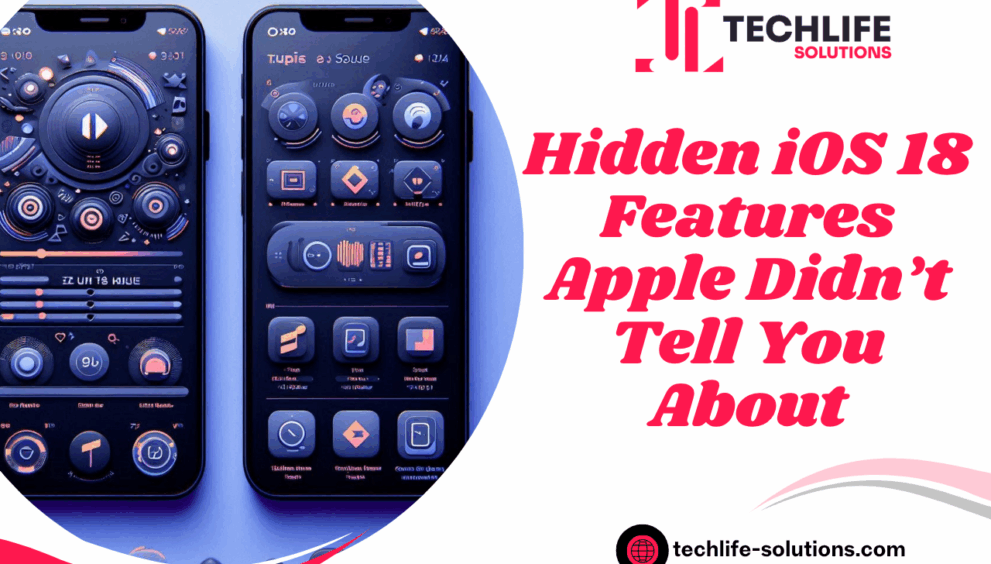
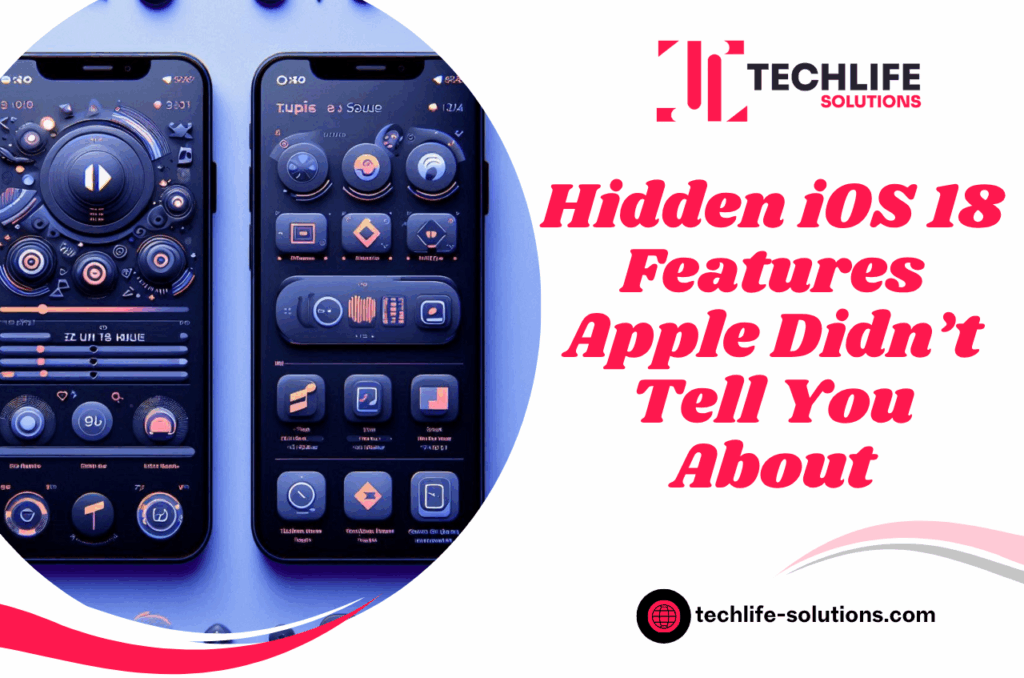
Apple’s update to iOS 18 created a lot of buzz and flashiness with new designs, improved AI, and more customization. Lets be honest though we all probably just installed the update and moved on without seeing the real magic hiding underneath.
This time, Apple didn’t just give us new wallpapers or new icons. In fact, there are quite a few really intelligent and useful features, some of which they never mentioned on stage.
So here is a complete list of iOS 18 hidden features, excellent iOS 18 tips and tricks, and little things that will help make your iPhone feel new again.
1. Lock and Hide Apps
This is a big deal. You can now put an app behind Face ID or your passcode, and hide it altogether. That means your banking app, private photos, or your distractions on social media can remain unseen.
How to do it:
- Long-press on any app → Tap “Require Face ID.”
- Want to hide it completely? Tap “Hide and Require Face ID.” Now it will not be visible on your home screen, and it can only be seen using Face ID in your App Library.
2. Custom Control Center (Make It Truly Yours)
Apple has finally allowed us to completely customize the Control Center. Now you can resize the buttons, add new shortcuts (like camera modes, flashlight brightness, or screen recording settings), and even create separate pages in the Control Center for different uses, like “Work,” “Home,” or “Travel.”
Try this:
Go to Settings → Control Center → Add or Rearrange Controls.
Now you can make the Control Center look like you – and not like everybody else’s iPhone.
This small change will speed up your everyday use significantly; no more digging through Settings for small things.
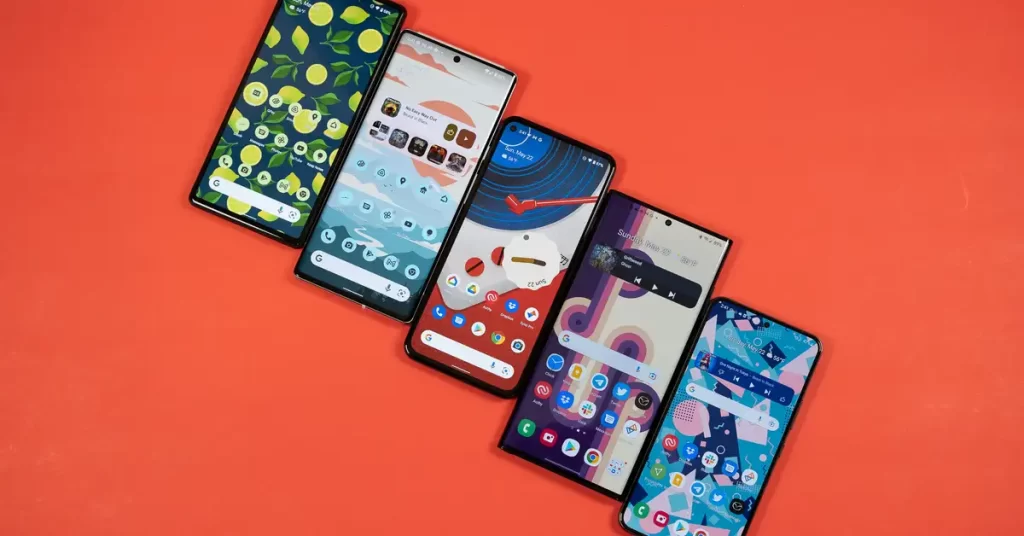
3. Home Screen Freedom (No More Perfect Grid)
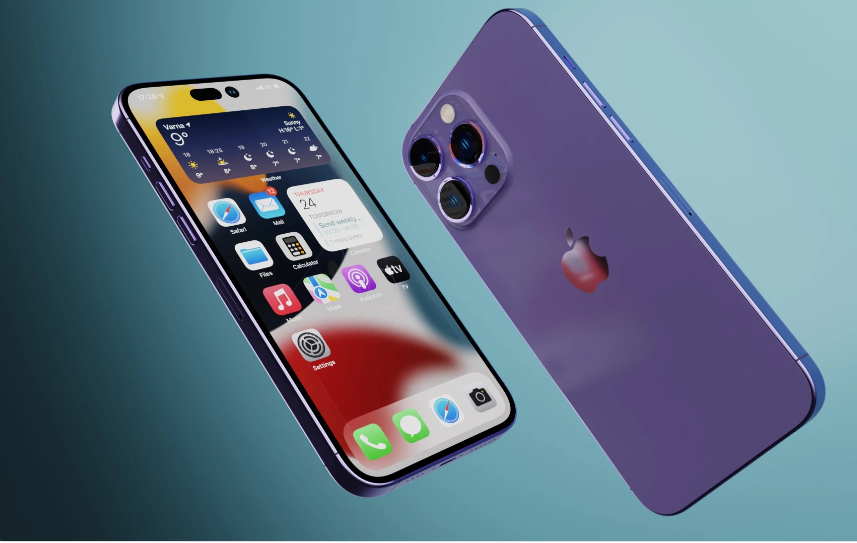
With the iOS 18 update, you can freely place app icons anywhere on your screen – you no longer have to keep that “perfect top-to-bottom” grid that Apple forced us to live with for the last decade.
Here’s what you can:
- Leave blank spaces to reveal more of your wallpaper.
- Remove all app labels for a clean look.
- Put widgets anywhere you want, without restrictions.
Pro Tip: Long-press on your Home Screen & tap “Edit” → Move your icons anywhere you want.
4. The All-New Photos Experience
The Photos app has a cleaner, and smarter look, allowing you to rearrange sections, pin collections, and create trips and memories automatically. It also understands objects, pets, and moods better — all due to Apple Intelligence.
5. Built-In Passwords App (No More Third-Party Tools)
Yes, Apple has implemented a stand-alone Passwords app. Opening Settings → Passwords is no longer necessary. This is a full-feature fair app. You can:
- See and edit your saved passwords.
- View accounts with 2FA enabled.
- Receive security alerts for weak and reused passwords.
If you pay for password managers like LastPass this could potentially save you some money every year.
6. Notes App Just Got Smarter
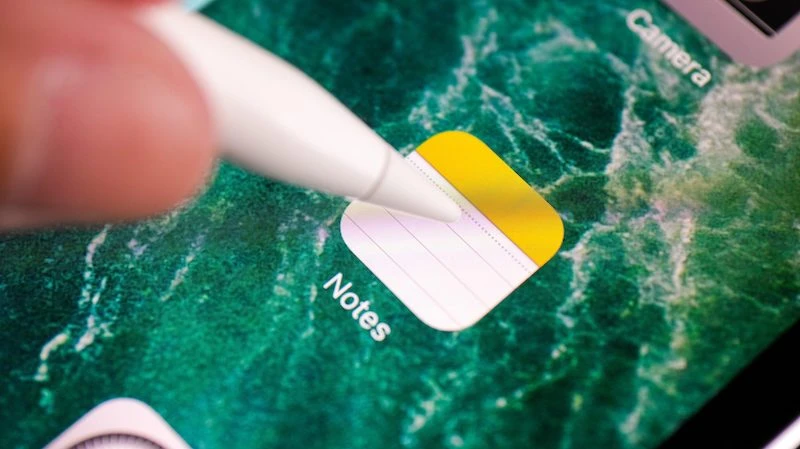
Apple has sneakily given the Notes App a mini upgrade in iOS 18. Now you can record voice notes directly inside Notes, and it will transcribe them in real time! There is also a new attachment button at the bottom for quick access to photos, sketches, and checklists.
Try this:
Begin recording a meeting, and your iPhone will be writing down everything for you. This is fantastic for students, creators, or business owners!
7. Hidden Privacy Features
Apple is proud of its privacy features, but it didn’t spend much time talking about some of the major advancements in iOS 18.
- In iOS 18, you can see what apps are accessing your data (location, contacts, camera, etc.) from one single dashboard.
- Your Wi-Fi address changes automatically so your device can’t be tracked on public networks.
- Apps that are hidden do not show notifications, meaning no one will know what is in your private app.
Tip: Go to Settings → Privacy & Security → App Privacy Report to see who is tracking you.
8. Smarter Siri and AI Integration
Apple Intelligence isn’t yet available everywhere, but if you have an iPhone 15 Pro or later, you’ll notice things feel different.
Siri now:
- Better understands context (you can say “Send that photo to Raj” right after seeing it).
- Can summarize your emails, notes, and even articles for you.
- Allows you to rewrite or improve your text right in Mail or Messages.
While Apple doesn’t call it “ChatGPT-style AI,” that’s what it is—just built into private experiences on your iPhone.
FAQs
Q1. What is the biggest new feature of iOS 18?
For sure, the ability to lock and hide apps. It’s useful, secure, and well overdue.
Q2. Will iOS 18 slow down my iPhone?
Not at all. It should run effectively on older models as it’s constructed to do so, despite some AI features (such as advanced image recognition) needing updated chips.
Q3. How can I maximize iOS 18?
Experiment in Settings, and in particular Control Center and Privacy—most of the hidden features are in those sections.
Q4. Does Apple Intelligence work on all iPhones?
Not yet. It’s first on iPhone 15 Pro, and won’t be released for older phones. We will get some AI updates but they will be limited.
Q5. Is it worth updating to iOS 18?
Definitely. Even if you don’t care about the new look, the privacy tools and app-locking features make it worth it.
Final Thoughts
The iOS 18 update isn’t just another Apple refresh, it’s a substantial upgrade, particularly for ordinary users. The new iOS 18 changes center solely around putting you in control—of the way your phone looks, how private it feels, and once again, how fast it works.
So instead of waiting for someone to explain it to you, just get right into it. Have fun. Hide some apps. Customize your Control Center. And watch your iPhone come alive again, about the same as new.
After all, sometimes, the best updates are the ones Apple never mentions.